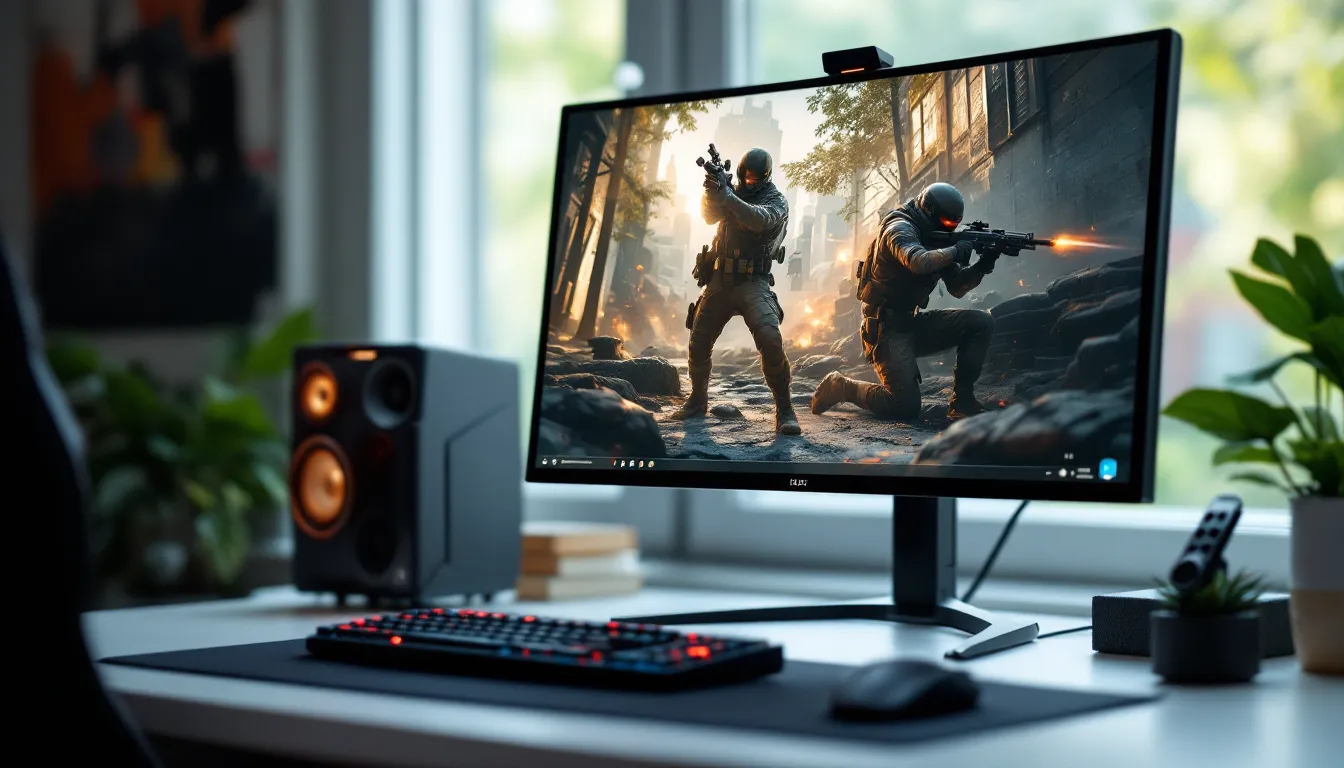

If you’ve been gaming on a 60Hz display, you’re playing at half speed, literally. The jump to a 144 hz gaming monitor isn’t just an upgrade: it’s a fundamental shift in how games feel, respond, and look. Every flick shot in Valorant, every corner peek in CS2, every high-speed drift in Forza becomes sharper, smoother, and more responsive. Whether you’re grinding ranked matches or just want your single-player adventures to look buttery smooth, a 144 hertz gaming monitor delivers the kind of performance that’s hard to go back from once you’ve experienced it.
This guide breaks down everything you need to know about picking, setting up, and getting the most out of a monitor gaming 144hz in 2026. We’ll cover what 144Hz actually means, which features matter most, how to match your monitor to your hardware, and which models deliver the best bang for your buck across every budget tier.
Key Takeaways
- A 144Hz gaming monitor displays images 144 times per second, more than double the standard 60Hz refresh rate, delivering noticeably smoother motion, faster visual feedback, and a competitive edge in fast-paced games.
- Matching your GPU’s performance to your monitor is essential: aim for 1080p/144Hz with mid-range GPUs or 1440p/144Hz with high-end hardware (RTX 4070+ or RX 7800 XT) to fully leverage your gaming monitor 144hz investment.
- IPS panels have closed the response time gap in 2026 and now offer the best all-around experience with excellent color accuracy and 1ms response times, making them ideal for gamers who want balanced competitive performance and visual quality.
- Adaptive sync technologies like G-Sync and FreeSync eliminate screen tearing and stuttering by syncing your monitor’s refresh rate to your GPU’s output—always verify compatibility with your graphics card before purchasing.
- The sweet spot for most gamers is 27 inches at 1440p or 24 inches at 1080p, balancing visual clarity, smooth gameplay, and the GPU performance needed to maintain consistently high frame rates.
- Proper setup is critical: verify your cable supports 144Hz (DisplayPort recommended), enable the refresh rate in Windows Display settings, and configure adaptive sync to unlock the full potential of your gaming monitor 144hz.
What Is a 144Hz Gaming Monitor and Why Does It Matter?
A gaming monitor 144 hz refreshes its image 144 times per second. That’s more than double the standard 60Hz monitor most people use for work or casual browsing. This refresh rate determines how many frames per second (FPS) the display can show, directly impacting how smooth motion appears on screen.
Understanding Refresh Rates and Frame Rates
Refresh rate and frame rate work together but aren’t the same thing. Your GPU renders frames and sends them to your monitor: the refresh rate determines how many of those frames actually get displayed each second.
If your GPU pushes 200 FPS in Overwatch 2 but you’re on a 60Hz monitor, you’re only seeing 60 of those frames. The rest are wasted. A 144Hz panel can display up to 144 FPS, letting you actually see the extra performance your hardware is producing.
Here’s the practical breakdown:
- Refresh rate: How many times per second the monitor updates its image (measured in Hz)
- Frame rate: How many frames per second your GPU renders (measured in FPS)
- Ideal scenario: Your FPS matches or exceeds your refresh rate for maximum smoothness
When your FPS drops below your refresh rate, you’ll notice stutter. When it exceeds your refresh rate without adaptive sync, you might see screen tearing. That’s where tech like G-Sync and FreeSync comes in, but we’ll get to that.
144Hz vs 60Hz: The Performance Difference
The gap between 60Hz and 144Hz isn’t subtle. At 60Hz, each frame displays for about 16.67 milliseconds. At 144Hz, that drops to roughly 6.94ms. You’re seeing updates more than twice as fast, which translates to smoother motion, clearer tracking of moving objects, and faster visual feedback from your inputs.
In competitive shooters, this matters a lot. When an enemy peeks around a corner, you’ll see them on your screen several milliseconds earlier than someone on a 60Hz display. Your crosshair movement appears fluid instead of choppy, making micro-adjustments more intuitive. According to testing from Tom’s Hardware, response time improvements at higher refresh rates measurably impact competitive performance in titles like CS2 and Apex Legends.
Even outside esports, the difference is noticeable. Single-player games feel more immersive when camera pans are smooth, and fast-paced action sequences don’t blur into mush. Once you’ve played on 144Hz for a week, going back to 60Hz feels like watching a slideshow.
Key Benefits of 144Hz Monitors for Gamers
Beyond the raw numbers, a 144 hertz gaming monitor brings tangible improvements that impact how games feel and how you perform.
Smoother Motion and Reduced Motion Blur
Motion clarity is where 144Hz really shines. When you whip your camera around in Call of Duty or track a fast-moving target in Fortnite, lower refresh rates create motion blur, a smearing effect that makes it harder to keep objects in focus.
At 144Hz, each frame updates so quickly that your eyes perceive continuous motion instead of discrete steps. This makes tracking enemies, following projectiles, and navigating complex environments significantly easier. The effect compounds if your monitor also has a low response time (1ms or less), which minimizes pixel transition blur.
Competitive Advantage in Fast-Paced Games
In competitive gaming, every millisecond counts. A monitor gaming 144hz reduces system latency, the delay between your input and what you see on screen. Combined with a capable GPU and low input lag, this setup lets you react faster to enemy movements and land more consistent shots.
Pro players in Valorant, CS2, and Rocket League almost universally use 144Hz or higher displays. While the monitor alone won’t make you a pro, it removes a significant hardware bottleneck. You’re seeing game state updates faster, which translates to better decision-making and tighter aim.
The advantage isn’t just for esports grinders. In battle royales, MOBAs, and any game where split-second reactions matter, 144Hz gives you more visual information to work with. You’ll spot movement in your peripheral vision sooner, track multiple targets more easily, and generally feel more in control.
Reduced Eye Strain During Extended Sessions
Less talked about but equally important: 144Hz displays are easier on your eyes during marathon gaming sessions. The smoother motion and reduced flicker (especially with flicker-free backlights) mean your eyes don’t work as hard to track movement and maintain focus.
If you’ve ever felt eye fatigue or headaches after hours on a 60Hz screen, the upgrade can be surprisingly noticeable. The combination of high refresh rate, adaptive sync to eliminate tearing, and modern panel tech makes for a more comfortable long-term viewing experience. This matters whether you’re pushing through a ranked grind or getting lost in a 10-hour RPG session.
Essential Features to Look for in a 144Hz Gaming Monitor
Not all 144 hz gaming monitors are created equal. Beyond the refresh rate, several specs and features determine whether you’re getting a great gaming experience or a compromised one.
Panel Types: TN, IPS, and VA Compared
The panel technology affects color accuracy, viewing angles, contrast, and response times. Here’s how the three main types stack up:
TN (Twisted Nematic):
- Pros: Fastest response times (often sub-1ms), cheapest, high refresh rates widely available
- Cons: Poor viewing angles, washed-out colors, limited contrast
- Best for: Competitive FPS players who prioritize speed over visuals
IPS (In-Plane Switching):
- Pros: Excellent color accuracy, wide viewing angles, good for content creation too
- Cons: Slightly slower response times (usually 1-4ms), more expensive, potential IPS glow
- Best for: Gamers who want balanced performance and great visuals
VA (Vertical Alignment):
- Pros: Best contrast ratios and deep blacks, good color reproduction
- Cons: Slower response times, potential ghosting in fast motion
- Best for: Single-player games, media consumption, dark room gaming
In 2026, IPS panels have closed the response time gap significantly. Most modern IPS 144Hz monitors hit 1ms G2G (gray-to-gray) response times, making them viable even for competitive gaming. Unless you’re a top-tier esports player where every microsecond matters, IPS offers the best all-around experience.
Response Time and Input Lag
Response time measures how quickly pixels change from one color to another, typically gray-to-gray. A 1ms response time is ideal for gaming: anything above 5ms can introduce visible ghosting, trails behind moving objects.
Input lag is different: it’s the delay between your input (mouse click, key press) and the display updating. Gaming monitors should have input lag under 10ms at their native refresh rate. Most quality 144Hz panels hit 3-5ms, which is imperceptible.
Don’t confuse response time with input lag. Marketing often highlights response time because it sounds better, but input lag matters more for how responsive games feel. Check detailed reviews from sources like RTINGS for measured input lag data, specs sheets from manufacturers aren’t always reliable.
Adaptive Sync Technologies: G-Sync and FreeSync
Adaptive sync eliminates screen tearing and stuttering by matching your monitor’s refresh rate to your GPU’s frame output in real time. There are two main standards:
NVIDIA G-Sync:
- Requires compatible NVIDIA GPU (GTX 10-series or newer)
- G-Sync Ultimate offers HDR and strict hardware requirements
- Generally more expensive due to proprietary module
AMD FreeSync:
- Works with AMD GPUs (and some NVIDIA cards as “G-Sync Compatible”)
- No licensing fee, so monitors are cheaper
- FreeSync Premium adds low framerate compensation (LFC)
In practice, the difference is minimal. NVIDIA now supports many FreeSync monitors, and the technology works similarly. Just make sure your monitor’s adaptive sync tech is compatible with your GPU brand. Most modern 144 hertz gaming monitors support at least FreeSync, with many being G-Sync Compatible certified.
Screen Size and Resolution Considerations
For 144Hz gaming, the sweet spot is 24-27 inches at 1080p or 1440p. Here’s why:
1080p (1920×1080):
- Easiest to drive at high FPS
- Best for competitive gaming and budget builds
- Ideal at 24 inches (pixel density stays sharp)
1440p (2560×1440):
- Significantly sharper image quality
- Great balance of visuals and performance
- Perfect at 27 inches
- Requires mid-to-high-end GPU (RTX 4060 Ti or better, RX 7700 XT+)
4K at 144Hz:
- Requires high-end GPU (RTX 4080+ or RX 7900 XT+)
- Expensive monitors ($500+)
- Overkill for competitive gaming, great for single-player eye candy
Most gamers should target 1080p/144Hz for esports titles or 1440p/144Hz for a mix of competitive and AAA gaming. The GPU requirements scale up dramatically at 1440p, but the visual improvement is worth it if your hardware can handle it.
Best 144Hz Gaming Monitors by Budget in 2026
Here’s how the market breaks down across price tiers in 2026, with specific models that deliver solid performance for the money.
Budget-Friendly Options Under $200
You can absolutely get a capable gaming monitor 144 hz without breaking $200. Expect 24-inch 1080p panels, usually TN or entry-level IPS, with FreeSync support.
What to expect in this range:
- 24″ 1080p resolution
- TN or budget IPS panels
- 1-3ms response time
- FreeSync (often G-Sync Compatible)
- Basic stands with limited adjustability
Strong picks:
- AOC 24G2: 24″ IPS, excellent color for the price, solid 1ms response
- ASUS VP249QGR: 24″ IPS, great ergonomics, reliable FreeSync
- BenQ ZOWIE XL2411K: 24″ TN, esports-focused, minimal input lag
These won’t wow you with HDR or premium build quality, but they nail the fundamentals: smooth 144Hz performance with minimal input lag. Perfect for competitive gamers on a tight budget or anyone upgrading from 60Hz for the first time.
Mid-Range Picks ($200-$400)
This is the sweet spot where you get quality IPS panels, better stands, 1440p options, and refined features. Expect better color accuracy, adaptive sync that actually works well, and build quality that’ll last.
What to expect:
- 24-27″ screens
- 1080p or 1440p resolution
- High-quality IPS or fast VA panels
- 1ms response time, low input lag
- Height-adjustable stands, VESA mounting
- Robust adaptive sync implementation
Strong picks:
- LG 27GP850: 27″ 1440p IPS, Nano IPS for wide color gamut, 1ms response, excellent reviews
- Dell S2722DGM: 27″ 1440p VA, great contrast, curved, solid FreeSync Premium
- Gigabyte M27Q: 27″ 1440p IPS, KVM switch built-in, great value
- ASUS VG259QM: 25″ 1080p IPS, 280Hz overclockable, esports beast
According to comprehensive TechRadar testing, mid-range IPS panels in 2026 deliver 98%+ sRGB coverage and sub-5ms input lag, making them genuinely competitive for esports while looking great for everything else. This tier offers the most balanced experience for most gamers.
Premium High-Performance Models ($400+)
Once you cross $400, you’re looking at premium features: higher resolutions, bigger screens, HDR support, ultra-fast refresh rates (165Hz+), and build quality that reflects the price tag.
What to expect:
- 27-32″ screens
- 1440p or 4K resolution
- Premium IPS with quantum dot tech
- HDR400 or better
- 165Hz-240Hz refresh rates
- G-Sync Ultimate or FreeSync Premium Pro
- USB hubs, RGB lighting, premium stands
Strong picks:
- ASUS ROG Swift PG279QM: 27″ 1440p IPS, 240Hz, G-Sync Ultimate, top-tier performance
- Samsung Odyssey G7: 27″ or 32″ 1440p VA, 240Hz, aggressive 1000R curve, HDR600
- LG 27GN950: 27″ 4K IPS, 144Hz, Nano IPS, HDR600, stunning image quality
- Acer Predator XB273U: 27″ 1440p IPS, 170Hz, G-Sync, excellent color accuracy
These monitors don’t just deliver 144Hz, they go beyond it while adding features like true HDR, ultra-wide color gamuts, and response times that rival TN panels. If you’ve got a high-end GPU and want the absolute best experience, this tier won’t disappoint.
144Hz Monitors for Different Gaming Genres
Your ideal monitor gaming 144hz varies depending on what you play most. Here’s how to match specs to genres.
Competitive FPS and Esports Gaming
Speed matters more than anything else here. You want the fastest response time, lowest input lag, and a refresh rate your GPU can consistently hit.
Ideal specs:
- 24-25″ screen (easier to see entire screen without head movement)
- 1080p resolution (maximizes frame rates)
- TN or fast IPS panel
- 1ms response time
- 144Hz minimum (240Hz if budget allows and GPU supports it)
- FreeSync/G-Sync for frame pacing
Best games for 144Hz:
- Counter-Strike 2
- Valorant
- Apex Legends
- Overwatch 2
- Rainbow Six Siege
In these titles, you’re looking at enemy models that move quickly and unpredictably. The clearer motion and faster updates from 144Hz give you measurably better target tracking. Pair it with a GPU that can push 200+ FPS consistently (even if your monitor caps at 144Hz, higher FPS reduces system latency).
RPGs, Adventure Games, and Single-Player Experiences
For story-driven games where visuals matter more than reaction time, prioritize image quality over raw speed.
Ideal specs:
- 27″ screen
- 1440p resolution
- IPS panel for color accuracy
- 4-5ms response time is fine
- 144Hz provides smooth camera movement
- HDR support enhances atmosphere
Great games that benefit:
- Elden Ring
- Baldur’s Gate 3
- Cyberpunk 2077
- The Witcher 3
- Starfield
Even though these aren’t competitive titles, 144Hz makes a noticeable difference. Camera pans are smooth, combat feels more responsive, and fast action sequences don’t blur. The higher refresh rate enhances immersion without requiring the absolute fastest hardware. A 1440p IPS panel at 144Hz hits the sweet spot for these experiences.
Racing and Sports Games
Racing sims and sports titles sit between competitive shooters and RPGs in terms of requirements. You want smooth motion for tracking fast movement, but color and contrast matter for visual clarity.
Ideal specs:
- 27-32″ screen (immersive without being overwhelming)
- 1440p resolution
- VA or IPS panel (VA’s contrast helps with depth perception)
- 1-3ms response time
- 144Hz minimum
- Curved screens can enhance immersion
Games that shine at 144Hz:
- Forza Horizon 5
- iRacing
- F1 2024
- Gran Turismo 7 (if playing on PC)
- FIFA/EA Sports FC
- NBA 2K
The high refresh rate makes tracking the ball in sports games or judging corners in racing sims noticeably easier. The smooth motion helps your brain process spatial relationships faster, improving performance even in games where millisecond reactions aren’t critical.
PC Requirements to Maximize 144Hz Performance
A 144 hz gaming monitor is only as good as the hardware driving it. Here’s what you need to actually hit those high frame rates consistently.
GPU Recommendations for 144Hz Gaming
Your GPU is the most critical component. It needs to render at least 144 FPS to take full advantage of your monitor’s refresh rate. Requirements scale dramatically with resolution and game settings.
For 1080p/144Hz:
- Budget: NVIDIA GTX 1660 Super, AMD RX 6500 XT (esports titles, medium settings)
- Mid-range: NVIDIA RTX 4060, AMD RX 7600 (AAA games, high settings)
- High-end: NVIDIA RTX 4060 Ti, AMD RX 7700 XT (AAA games, max settings)
For 1440p/144Hz:
- Mid-range: NVIDIA RTX 4060 Ti 16GB, AMD RX 7700 XT (AAA games, high settings)
- High-end: NVIDIA RTX 4070 Super, AMD RX 7800 XT (AAA games, max settings)
- Enthusiast: NVIDIA RTX 4080 Super, AMD RX 7900 XTX (everything maxed)
Realistic expectations matter here. In competitive titles like CS2 or Valorant, even mid-range GPUs can push 200+ FPS at 1080p. In demanding AAA titles like Cyberpunk 2077 or Alan Wake 2, you’ll need high-end hardware to maintain 144 FPS at 1440p with ray tracing enabled.
Many gamers use adaptive sync and let frame rates fluctuate between 100-144 FPS in demanding titles. That’s perfectly fine, the experience is still dramatically better than 60Hz, even if you’re not locked at 144.
CPU and RAM Considerations
Once you’re targeting high frame rates, CPU and RAM become more important than they are at 60Hz. High FPS puts more demand on your CPU to process game logic, physics, and draw calls quickly enough to feed frames to your GPU.
CPU recommendations:
- Budget: Intel i5-12400F, AMD Ryzen 5 5600X
- Mid-range: Intel i5-13600K, AMD Ryzen 5 7600X
- High-end: Intel i7-14700K, AMD Ryzen 7 7800X3D
The AMD Ryzen 7 7800X3D deserves special mention, its massive 3D V-Cache makes it the top choice for high-refresh gaming in 2026, often outperforming more expensive CPUs in frame-time consistency.
RAM recommendations:
- Minimum: 16GB DDR4-3200 or DDR5-5200
- Recommended: 32GB DDR4-3600 or DDR5-6000
- Speed matters: Faster RAM (especially on AMD Ryzen) can boost 1% lows significantly
For competitive shooters where you’re GPU-limited at high frame rates, faster RAM can provide 5-15% better 1% low frame times. That means fewer stutters and more consistent frame pacing, which matters when you’re trying to maintain 144+ FPS.
Setting Up and Optimizing Your 144Hz Monitor
Getting your new gaming monitor 144 hz working properly requires a few configuration steps. Don’t skip these, many people run 144Hz monitors at 60Hz for months without realizing it.
Enabling 144Hz in Windows Settings
Out of the box, Windows often defaults to 60Hz. Here’s how to fix it:
- Right-click your desktop and select Display settings
- Scroll down and click Advanced display settings
- Find Refresh rate dropdown and select 144Hz
- Click Apply and confirm
To verify it’s working, testufo.com in your browser. You’ll see a clear visual comparison between different refresh rates. If the motion still looks choppy, you’re not actually running at 144Hz.
Cable matters: Make sure you’re using the right cable:
- DisplayPort 1.2 or newer: Supports 1080p and 1440p at 144Hz easily
- HDMI 2.0: Supports 1080p at 144Hz, 1440p at 120Hz
- HDMI 2.1: Supports 1440p and 4K at 144Hz+
- Older cables: May cap you at 60Hz
DisplayPort is the safest bet. If you’re using HDMI and not getting 144Hz as an option, your cable is likely the culprit.
Calibrating Color and Brightness
Even gaming monitors benefit from basic calibration. You don’t need professional equipment, just eyeball it using test patterns.
Basic calibration steps:
- Brightness: Set so you can distinguish between black bars and background in dark scenes. Usually 20-30% in a lit room, higher in dark rooms.
- Contrast: Set to 70-80% as a starting point. Too high crushes whites: too low makes everything flat.
- Color temperature: “Warm” or 6500K looks most natural. “Cool” or “Blue Light” modes look sharp but cause eye strain.
- Saturation: Most monitors oversaturate out of the box. Drop digital vibrance or saturation by 10-15% for more natural colors.
Many monitors include gaming-focused presets like “FPS mode” or “Racing mode.” These usually just crank contrast and saturation to unrealistic levels. A calibrated “Standard” or “sRGB” mode looks better and is easier on your eyes during long sessions.
Configuring Adaptive Sync Features
For NVIDIA G-Sync/G-Sync Compatible:
- Open NVIDIA Control Panel
- Navigate to Display > Set up G-SYNC
- Check Enable G-SYNC for your monitor
- Select Enable for full screen and windowed mode
- Click Apply
For AMD FreeSync:
- Open AMD Software: Adrenalin Edition
- Go to Gaming > Display
- Toggle AMD FreeSync to On
In-game V-Sync settings: With adaptive sync enabled, turn V-Sync OFF in game settings. Adaptive sync replaces V-Sync’s function and works better. Cap your frame rate to 141-142 FPS (just below your monitor’s max) to stay within the adaptive sync range and avoid tearing.
Some games fight with adaptive sync. If you notice stuttering or unusual frame pacing, try enabling V-Sync in-game as a fallback, though this adds input lag.
Common Mistakes to Avoid When Buying a 144Hz Monitor
Don’t fall into these traps when shopping for a 144 hertz gaming monitor.
Buying 144Hz without the GPU to drive it: If your GPU struggles to hit 80 FPS in the games you play, a 144Hz monitor won’t help. You need hardware capable of pushing high frame rates, or you’re paying for specs you can’t use. Check benchmarks for your specific GPU and target games before pulling the trigger.
Ignoring response time and input lag: A monitor advertised as “144Hz gaming” might still have 8ms response time and significant ghosting. Always check reviews for measured response time and input lag, not just manufacturer claims. TN panels market sub-1ms, but many IPS panels now hit 1ms G2G too without sacrificing color.
Skipping adaptive sync to save $20: Screen tearing at high frame rates is jarring and breaks immersion. Adaptive sync (FreeSync or G-Sync) eliminates this cleanly. The small extra cost is worth it. Almost every 144Hz monitor in 2026 includes some form of adaptive sync, but double-check before buying.
Choosing the wrong resolution for your GPU: A 1440p/144Hz monitor looks great on paper, but if your RTX 4060 can’t maintain 100+ FPS in your favorite games, you’ll be stuck choosing between lower settings or frame rates below your monitor’s capability. Be honest about your GPU’s performance tier and match resolution accordingly. 1080p/144Hz is still an excellent experience and much easier to drive.
Forgetting about panel type trade-offs: TN is fast but ugly. VA has great contrast but can ghost. IPS is balanced but costs more. Don’t just buy the cheapest 144Hz screen, understand what panel type fits your priorities. For most gamers in 2026, IPS is the right call, but competitive FPS players might still prefer TN’s raw speed.
Not checking your desk space and ergonomics: A 32″ monitor sounds awesome until it’s 18 inches from your face and you’re moving your head constantly to see corners. For desk gaming, 24-27″ is ideal. Also verify the stand has height adjustment or VESA mounting, poor ergonomics will hurt your neck and performance after hours of play.
Conclusion
Upgrading to a gaming monitor 144hz is one of the most impactful hardware changes you can make for PC gaming. The difference isn’t subtle, it’s immediate, visceral, and hard to go back from. Whether you’re chasing rank in competitive shooters or just want your favorite games to look and feel as smooth as possible, 144Hz delivers.
Focus on the fundamentals: match your monitor’s resolution to your GPU’s capability, prioritize low response time and input lag, and make sure adaptive sync is included. IPS panels offer the best balance for most gamers in 2026, and the $200-$400 range delivers excellent performance without very costly. Set it up correctly, enable that 144Hz refresh rate in Windows, and enjoy the smoothest gaming experience you’ve had yet.