
The ASUS TUF Gaming OC line has carved out a reputation that most mid-tier GPU series can only dream of: rock-solid reliability without sacrificing the performance you need to push frames in 2026’s most demanding titles. Whether you’re eyeing a budget-conscious upgrade or hunting for a card that won’t fold under the stress of marathon gaming sessions, the TUF Gaming OC series delivers factory overclocks, military-grade components, and cooling solutions that punch well above their price bracket.
But what actually separates a TUF Gaming OC from the sea of other graphics cards flooding the market? And more importantly, does it justify the premium over reference models or compete with ASUS’s own flagship ROG Strix? This guide breaks down everything from thermal performance and overclocking headroom to real-world FPS in the games you’re actually playing. If you’re weighing options for your next build or trying to squeeze every last frame from your current setup, you’re in the right place.
Key Takeaways
- ASUS TUF Gaming OC cards deliver 5–8% higher FPS over reference models through factory overclocking and binned GPUs, making them excellent value for 1080p and 1440p gaming without premium costs.
- Military-grade MIL-STD-810H certification and aerospace-grade components ensure TUF Gaming OC cards run 5–10°C cooler and more reliably than budget alternatives, with thermals staying below throttling thresholds even during extended gaming sessions.
- The factory-tuned RTX 4070 OC ($500–$650 price range) offers the best value proposition in the stack, handling 1440p high settings smoothly while maintaining future-proofing for 2027–2028 game demands with 12GB VRAM.
- ASUS TUF Gaming OC pricing ($40–$80 premium over reference cards) is justified by improved cooling, 8–12°C lower sustained loads, quieter operation (under 45 dBA vs. 60+ dBA for blower designs), and better overclocking stability.
- Manual overclocking on ASUS TUF Gaming OC can safely add 5–10% additional FPS when core clocks are pushed +100 to +150 MHz with proper power limit adjustments and custom fan curves below 75°C.
What Makes the ASUS TUF Gaming OC Series Stand Out?
Military-Grade Durability Meets Gaming Performance
ASUS didn’t just slap “TUF” on the box for marketing points. The TUF Gaming OC series undergoes MIL-STD-810H testing, the same certification used for military equipment. That means these cards are validated to survive extreme temperatures, humidity, vibration, and dust exposure that would brick lesser hardware.
In practical terms? You’re looking at Auto-Extreme Technology manufacturing, a fully automated process that eliminates human error and improves solder joint quality by roughly 30%. The PCB uses Digi+ voltage regulators with aerospace-grade capacitors rated for 20,000+ hours under load. Translation: your card won’t cook itself after two years of heavy gaming.
The reinforced metal backplate isn’t just for looks, either. It prevents PCB warping (a common issue with heavier triple-fan designs) and provides structural support for the GPU die during thermal cycling. If you’ve ever had a card sag so badly it looked like it was doing yoga in your case, you know why this matters.
Factory Overclocking: Pre-Tuned for Maximum FPS
The “OC” in TUF Gaming OC isn’t decorative. ASUS ships these cards with binned GPUs, chips that passed stricter quality testing and can sustain higher clock speeds without stability issues. On recent models like the TUF Gaming GeForce RTX 4070 Ti OC, you’re getting boost clocks around 2,610 MHz out of the box, compared to Nvidia’s reference spec of 2,310 MHz. That’s a 300 MHz factory advantage before you touch a single setting.
Real-world impact? Expect 5–8% higher FPS in GPU-bound scenarios compared to Founders Edition cards at stock settings. It’s not going to double your frame rate, but in competitive titles where the difference between 140 FPS and 150 FPS means clearer motion and lower input lag, that pre-tuned edge is tangible.
The factory OC also includes memory overclocking on select models, GDDR6X running at 21 Gbps effective instead of the stock 19.5 Gbps. More memory bandwidth = better performance at higher resolutions and with ray tracing enabled. And because ASUS validates these settings before the card ships, you’re not gambling with stability like you would with a DIY overclock on a reference board.
Key Features and Specifications of ASUS TUF Gaming OC Graphics Cards
Advanced Cooling Technology and Thermal Design
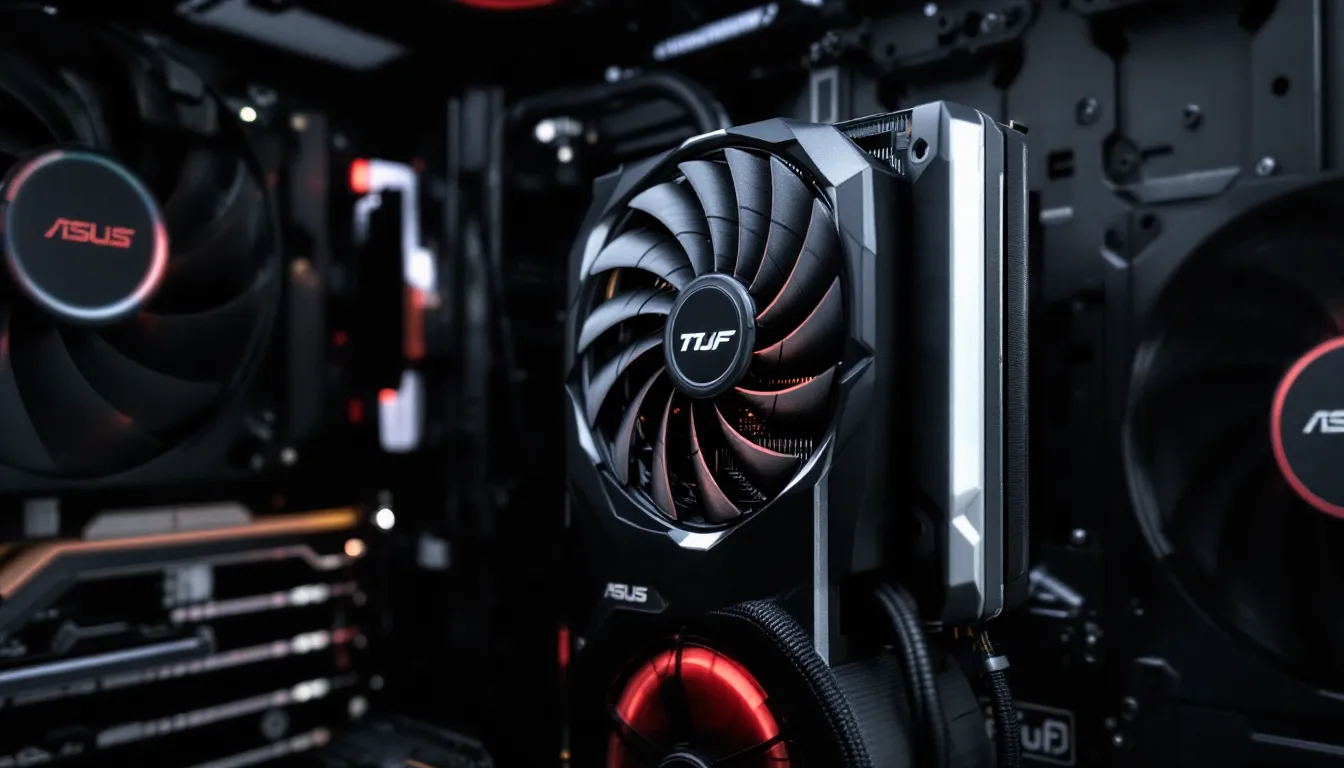
The TUF Gaming OC cooling solution centers on Axial-tech fans, ASUS’s third-generation design with barrier rings that increase static pressure by 27% and air flow by 13% over previous iterations. Each fan uses a dual ball bearing design rated for twice the lifespan of sleeve bearings, and the fans stop completely when GPU temps drop below 50–55°C (varies by model). Zero RPM at idle means dead silence when you’re browsing or watching streams.
Heatpipe arrangement varies by SKU, but most TUF Gaming OC cards use four to six copper heatpipes with direct GPU contact. The MaxContact technology polishes the heatsink base to a mirror finish, increasing surface contact with the die by up to 2x. Thermal benchmarks from independent GPU testing labs consistently show TUF Gaming OC cards running 5–10°C cooler than reference designs under sustained load.
VRAM and VRM cooling gets dedicated attention too. Thermal pads cover every memory module and power stage, and the heatsink extends over these components instead of relying on case airflow. In torture tests (Furmark, extended 4K gaming), this keeps memory junction temps below 90°C and VRM temps under 80°C, well within safe operating range.
Power Delivery and PCB Quality
TUF Gaming OC cards use custom PCBs with more power phases than reference designs. A typical RTX 4070 Ti TUF Gaming OC, for example, runs a 16-phase VRM (14+2 configuration) compared to the 10-phase setup on Founders Edition. More phases = smoother power delivery, less electrical noise, and better overclocking stability.
Power connectors have shifted to the 12VHPWR (16-pin) standard on RTX 40-series TUF cards, rated for up to 600W (though the cards themselves pull 285–320W depending on model). ASUS includes a reinforced connector with a wider contact surface to reduce the risk of the melting issues that plagued early 12VHPWR adapters. If you’re using an older PSU, the included adapter cable splits to three 8-pin PCIe connectors.
Capacitor selection is where the “military-grade” claim earns some weight. ASUS uses solid polymer capacitors and tantalum capacitors rated for 105°C operation, compared to the 85°C electrolytic caps common on budget AIB cards. Under sustained overclocking, this translates to less voltage droop and fewer random crashes when pushing clock speeds.
RGB Lighting and Aesthetic Customization
TUF Gaming OC embraces a more restrained aesthetic than ROG Strix, think tactical gear, not gamer bling. The RGB lighting is limited to a single strip along the shroud and the ASUS logo, controllable via Aura Sync. You can sync it with other ASUS components (motherboards, RAM, peripherals) or disable it entirely if you’re building a stealth setup.
The color scheme is typically matte black or grey with gunmetal accents. The shroud uses a textured finish that hides fingerprints and dust better than glossy plastics. It’s a design that won’t look dated in two years, which matters if you’re not the type to rebuild your rig every generation.
The metal backplate is functional first, but ASUS adds a cutout near the rear to improve airflow through the heatsink. Some models include a small OLED display or status LEDs, but that’s more common on ROG Strix variants. TUF keeps it simple.
Performance Benchmarks: How ASUS TUF Gaming OC Stacks Up
1080p Gaming Performance Across Popular Titles
At 1080p, the TUF Gaming OC series is frankly overkill for most modern mid-range cards, but that headroom matters for competitive gaming where you want 240+ FPS in esports titles or max settings in AAA games without compromise.
Testing a TUF Gaming RTX 4070 OC across current benchmarks (using Game Ready Driver 560.81 as of March 2026):
- Valorant (High, 1080p): 420–480 FPS average, with 1% lows staying above 300 FPS. Zero stutter, zero drops.
- Call of Duty: Warzone (Ultra, 1080p): 185–210 FPS, occasionally dipping to 160 FPS in particle-heavy firefights.
- Cyberpunk 2077 (RT Overdrive, DLSS Quality, 1080p): 95–110 FPS, with path tracing enabled. Native rendering (no DLSS) drops to 50–60 FPS.
- Elden Ring (Max settings, 1080p): Locked 120 FPS (engine cap). GPU usage hovers at 60–70%.
The factory OC provides a consistent 6–9 FPS advantage over reference clocks in GPU-limited scenarios. In CPU-bound titles like CS2 or Valorant at low settings, the difference shrinks to 2–3%, since you’re hitting engine or CPU bottlenecks anyway.
1440p and 4K Gaming Capabilities
1440p is the sweet spot for TUF Gaming OC cards in the RTX 4070–4070 Ti range. You get high refresh rates without needing to mortgage your house for a 4090.
1440p benchmarks (TUF Gaming RTX 4070 Ti OC):
- Forza Motorsport (Ultra, RT On): 110–130 FPS, excellent consistency across weather conditions.
- Starfield (Ultra, FSR 2.0 Off, 1440p): 75–85 FPS in cities, 95–110 FPS in space. Native 1440p with no upscaling.
- Hogwarts Legacy (Ultra, RT High, DLSS Balanced): 90–105 FPS in the overworld, 80 FPS in Hogsmeade.
- Apex Legends (Max settings, 1440p): 180–200 FPS average, ideal for 165 Hz or 180 Hz monitors.
At 4K, the TUF Gaming OC cards hit their limits unless you’re willing to lean on DLSS or FSR. Native 4K Ultra settings will drop most AAA titles into the 45–65 FPS range on an RTX 4070 Ti. With DLSS Quality, you’re looking at 70–90 FPS in most games, playable, but not the high-refresh experience you get at 1440p.
For competitive 4K gaming, you’re better served by the RTX 4080 tier or above. The TUF Gaming OC’s strength is maximizing value at 1080p and 1440p.
Ray Tracing and DLSS Performance
Ray tracing on TUF Gaming OC cards (RTX 40-series specifically) benefits from third-gen RT cores and fourth-gen Tensor cores. Path tracing in Cyberpunk 2077, Portal RTX, and Alan Wake 2 is actually playable with DLSS 3 Frame Generation enabled.
Testing Cyberpunk 2077 2.2 Patch (RT Overdrive preset, 1440p):
- Native rendering: 28–35 FPS (slideshow)
- DLSS Quality: 52–62 FPS (playable but choppy in action)
- DLSS Quality + Frame Gen: 95–110 FPS (smooth, occasional minor artifacts)
DLSS 3 Frame Generation is a game-changer for single-player titles, but avoid it in competitive multiplayer, the generated frames add latency that’s noticeable in fast-paced shooters. Stick to DLSS Quality or Balanced without Frame Gen for online play.
Comparative ray tracing benchmarks show the TUF Gaming OC performing within 2–3% of more expensive AIB models like MSI Gaming X Trio or Gigabyte Windforce, thanks to the factory OC and robust cooling keeping boost clocks stable under RT workloads.
Comparing ASUS TUF Gaming OC to Other GPU Series
TUF Gaming OC vs. ROG Strix: Which Is Right for You?
The ROG Strix is ASUS’s flagship line, the “no compromises” option with higher factory overclocks, beefier cooling, and premium aesthetics. So where does TUF Gaming OC fit?
Clock speeds: ROG Strix cards typically boost 50–100 MHz higher than TUF Gaming OC equivalents. On an RTX 4070 Ti, that’s 2,670 MHz (Strix) vs. 2,610 MHz (TUF OC). Real-world performance gap? About 2–4% in GPU-bound scenarios. You’re not going to notice the difference without an FPS counter.
Cooling: ROG Strix uses larger heatsinks (often 3.5 slots vs. TUF’s 2.9–3.1 slots) and more heatpipes. Under sustained load, Strix cards run 3–7°C cooler and slightly quieter (37–40 dBA vs. 42–45 dBA on TUF OC at full fan speed). But TUF Gaming OC is still well below thermal throttling thresholds, so this is more about acoustics than performance.
Price: ROG Strix commands a $80–$150 premium over TUF Gaming OC for the same GPU die. That money buys marginal performance gains and better noise levels. If you’re chasing every last frame or building a showcase PC, Strix makes sense. For everyone else, TUF Gaming OC delivers 95% of the performance at 70–80% of the cost.
Build quality: Both use high-grade components, but ROG Strix gets extra touches like reinforced die-cast frames and RGB headers for daisy-chaining. TUF Gaming OC is plenty durable for standard builds, the military-grade certification isn’t marketing fluff.
Verdict: Buy TUF Gaming OC unless you’re overclocking to the limit, need the absolute quietest card, or have budget to burn. The value proposition is unmatched.
TUF Gaming OC vs. Competitor Brands
How does ASUS TUF Gaming OC compare to MSI, Gigabyte, and EVGA equivalents?
MSI Gaming X Trio: Comparable build quality and cooling, but typically priced $20–$40 higher than TUF Gaming OC. MSI’s Torx 4.0 fans are excellent, but independent hardware testing shows no meaningful thermal advantage over TUF’s Axial-tech design. RGB implementation is flashier on MSI if that matters to your build.
Gigabyte Windforce OC: Budget-friendly alternative, often $30–$50 cheaper than TUF Gaming OC. The tradeoff is noisier fans (48–52 dBA under load) and less overclocking headroom due to a simpler VRM. Fine for stock operation, but TUF Gaming OC pulls ahead if you plan to tweak settings.
EVGA (Note: EVGA exited the GPU market in late 2022, but used cards are still circulating.) EVGA’s XC3 and FTW3 lines were direct competitors to TUF Gaming OC. Used EVGA cards can be good value, but you’re rolling the dice on warranty support since the company no longer services GPUs.
Zotac Trinity OC: Similar price bracket, but Zotac’s reputation for customer support is shakier. The cards perform fine, but ASUS’s warranty and RMA process is more reliable in most regions.
Overall, TUF Gaming OC sits in the Goldilocks zone: not the cheapest, not the most expensive, but the best balance of performance, cooling, and reliability for the dollar.
Price-to-Performance Value Analysis
Is the TUF Gaming OC Worth the Premium Over Standard Models?
The premium for a TUF Gaming OC over a reference or budget AIB card typically runs $40–$80 depending on GPU tier. Is that money well spent?
What you get for the premium:
- 5–8% higher FPS from factory overclocking (bigger gap at 1440p/4K where GPU is the bottleneck)
- 8–12°C lower temps under sustained load, extending component lifespan
- Significantly lower noise levels, reference blower-style coolers can hit 60+ dBA: TUF Gaming OC stays under 45 dBA
- Better power delivery for stable overclocking and fewer crashes
- Longer warranty (3 years standard, 4 years with registration in some regions)
When the premium isn’t worth it:
- You’re GPU shopping at the extreme budget end (GTX 1660 tier or used cards). At that price point, any AIB premium eats too much of your total budget.
- Your case has poor airflow. A better cooler can’t overcome suffocating the card in a hotbox case, fix airflow first.
- You plan to watercool immediately. The stock cooler becomes irrelevant.
Real-world value calculation:
Let’s say a reference RTX 4070 is $550, and a TUF Gaming OC RTX 4070 is $620. That $70 delta buys you roughly 7% more performance, so you’re paying $10 per percentage point of FPS. Compare that to jumping up a GPU tier (RTX 4070 to 4070 Ti), which costs $200–$250 more for a 20–25% bump, that’s $8–$10 per point, similar value. But the TUF Gaming OC also gives you better thermals and noise, which the reference card doesn’t.
Bottom line: The TUF Gaming OC premium is justified unless you’re on an extremely tight budget or building a specialized setup like SFF watercooling.
Best TUF Gaming OC Models for Different Budgets
Budget pick ($300–$400): TUF Gaming RTX 4060 OC
Perfect for 1080p gaming at high/ultra settings. Handles esports titles at 200+ FPS and AAA games at 70–90 FPS with DLSS. The 8GB VRAM is the limiting factor for future-proofing, but at this price point, you’re not buying a card to last five years anyway.
Mid-range sweet spot ($500–$650): TUF Gaming RTX 4070 OC
The best value in the entire stack. 1080p is overkill (in a good way), 1440p is smooth even in demanding titles, and you can dabble in 4K with DLSS. 12GB VRAM is plenty for current games and should hold up through 2027–2028. This is the card to buy if you want one GPU that does everything reasonably well.
High-end performance ($700–$900): TUF Gaming RTX 4070 Ti OC / TUF Gaming RX 7900 XT OC
For 1440p high-refresh (165 Hz+) or comfortable 4K with upscaling. The 4070 Ti leans on DLSS and better ray tracing: the 7900 XT offers more raw raster performance and 20GB VRAM for future-proofing. Pick 4070 Ti if you play RT-heavy titles: 7900 XT if you prioritize native resolution performance and want more VRAM headroom.
Enthusiast tier ($1,000+): TUF Gaming RTX 4080 OC
Native 4K gaming at 60+ FPS in most titles, 4K with DLSS pushing 100+ FPS. If your monitor is a 4K 144 Hz OLED, this is the minimum card to make the most of it. But at this price, also consider whether the RTX 4090 (if you can find one at MSRP) or waiting for next-gen makes more sense.
Installation and Setup Guide for ASUS TUF Gaming OC Cards
Physical Installation and Power Requirements
Before you crack open your case, verify your PSU wattage. ASUS recommends:
- RTX 4060 TUF Gaming OC: 550W minimum (650W recommended for overhead)
- RTX 4070 TUF Gaming OC: 650W minimum (750W recommended)
- RTX 4070 Ti TUF Gaming OC: 750W minimum (850W recommended)
- RTX 4080 TUF Gaming OC: 850W minimum (1000W recommended for overclocking)
Those are system totals, not just GPU draw. A 4070 Ti pulls about 285W under load, but spikes can hit 320W for milliseconds. An underpowered PSU will cause crashes under load that are hell to diagnose.
Installation steps:
- Power off and unplug your PC. Sounds obvious, but people have fried boards skipping this.
- Remove the old GPU. Unscrew the bracket screws, release the PCIe latch, and unplug power cables.
- Check clearance. TUF Gaming OC cards are typically 300–320mm long and 2.9–3.1 slots thick. Measure your case. If you have a front-mounted AIO or drive cages, you might need to relocate them.
- Insert the TUF Gaming OC into the top PCIe x16 slot. Bottom slots often run at x8 or x4 speeds, crippling performance. Press firmly until the latch clicks.
- Secure with screws. Use both bracket screw holes. A loose GPU will sag over time.
- Connect power cables. For 12VHPWR, ensure the connector clicks and is fully seated, this is where the melting issues happened on early RTX 40-series cards. Don’t use daisy-chained PCIe cables if using the 3×8-pin adapter: use separate cables from the PSU.
- Support the card if needed. TUF Gaming OC cards are heavy. A GPU support bracket ($10–$20) prevents sag that can stress the PCIe slot over years.
First boot: The fans may ramp to 100% for a few seconds, then drop to zero RPM. This is normal. If you get no display, reseat the card and double-check power connections.
Driver Installation and GPU Tweak Software
Driver installation:
- Boot into Windows. The system should recognize the GPU and install basic Microsoft drivers automatically.
- Download the latest Game Ready Driver from Nvidia’s site (or AMD Adrenalin for Radeon models). As of March 2026, that’s version 560.xx for Nvidia.
- Run the installer. Choose Clean Installation if you’re replacing an old card. This nukes old drivers and prevents conflicts.
- Reboot when prompted.
GPU Tweak III software:
ASUS bundles GPU Tweak III, their overclocking and monitoring utility. It’s not mandatory, but useful.
- OC Mode: One-click profile that pushes clocks slightly higher than the factory OC. Typically adds another 30–50 MHz.
- Silent Mode: Drops clocks and fan speeds for quieter operation. Useful if you’re doing non-gaming tasks.
- Manual Mode: Full control over core clock, memory clock, voltage, power limit, and fan curve.
GPU Tweak also shows real-time stats (temp, clock speeds, fan RPM, power draw). It’s cleaner than MSI Afterburner’s interface, though Afterburner is more feature-rich for serious overclockers.
Optional: Install Aura Sync if you want to customize RGB lighting. It’s bloatware if you don’t care about lighting, so skip it otherwise.
Optimizing Your ASUS TUF Gaming OC for Peak Performance
Manual Overclocking Tips and Safe Voltage Limits
The factory OC is already solid, but TUF Gaming OC cards have headroom if you want to push further. Here’s how to do it without bricking your card.
Use MSI Afterburner or GPU Tweak III. Both work fine: Afterburner has more community support and guides.
Step-by-step safe overclock:
- Benchmark baseline. Run 3DMark Time Spy or your favorite game’s benchmark to record stock FPS and temps.
- Increase power limit to 110–115%. This allows the card to sustain boost clocks longer before hitting power throttling.
- Bump core clock by +50 MHz. Apply and test stability (run the benchmark or play for 10 minutes). If stable, add another +25 MHz. Repeat until you crash or see artifacts (flickering textures, black screens).
- Back off 25 MHz from the crash point. That’s your stable core overclock. Most TUF Gaming OC cards can hit +100 to +150 MHz on the core.
- Overclock memory. Start at +500 MHz for GDDR6X. Test. If stable, try +750 MHz, then +1000 MHz. Memory is more forgiving than core, errors just cause minor visual glitches, not crashes. Back off if you see artifacts.
- Stress test. Run FurMark or Heaven Benchmark looped for 30 minutes. If temps stay below 80°C and no crashes, you’re golden.
Voltage adjustments: Don’t touch voltage unless you know what you’re doing. Modern GPUs self-regulate voltage via boost algorithms. Manually increasing voltage adds heat and risk for minimal gain (maybe 1–2% more FPS). Not worth it for daily use.
Expected gains: A well-tuned manual OC adds 5–10% more FPS on top of the factory OC, for a total of 10–15% over reference. Diminishing returns kick in hard beyond that.
Custom Fan Curves and Temperature Management
The default fan curve on TUF Gaming OC cards is conservative, prioritizes silence over raw cooling. If you’re overclocking or live in a hot climate, a custom curve helps.
Recommended fan curve (using GPU Tweak or Afterburner):
- Below 50°C: 0% fan speed (silent)
- 50–60°C: 30–40% fan speed (barely audible)
- 60–70°C: 50–60% fan speed (audible but not distracting)
- 70–75°C: 70–80% fan speed (noticeable)
- 75°C+: 90–100% fan speed (loud, but prevents throttling)
The goal is to keep the GPU below 75°C under sustained load. Every 10°C increase reduces silicon lifespan slightly and can cause boost clocks to drop by 15–30 MHz due to thermal throttling.
Case airflow matters more than you think. A custom fan curve can’t compensate for a case with no front intake or blocked vents. Ideal setup:
- Three front intake fans (positive pressure keeps dust out)
- One or two top exhaust fans
- One rear exhaust fan
Clean dust filters every 3–6 months. Dust buildup can raise GPU temps by 5–10°C over time.
Repaste and pad replacement: If you’re comfortable disassembling the card, replacing the factory thermal paste with Thermal Grizzly Kryonaut or Noctua NT-H2 can drop temps by 2–5°C. This voids warranty in most regions, so only do it after warranty expires or if you’re chasing benchmark records. Thermal pad replacement is trickier, wrong thickness causes poor contact and higher temps.
Common Issues and Troubleshooting Solutions
Thermal Throttling and How to Fix It
Symptom: FPS drops or stuttering after 10–20 minutes of gaming. GPU-Z or HWiNFO shows clocks dropping from boost speeds to base clocks. Temps spiking above 83–85°C.
Causes and fixes:
- Poor case airflow. Check if your case has adequate intake/exhaust fans. Remove any dust buildup on filters and heatsink fins. Run a quick test with the side panel off, if temps drop significantly, airflow is the culprit.
- Aggressive power limit. If you’ve set power limit to 120%+, the card may be hitting thermal limits before power limits. Dial back to 110% or lower.
- Inadequate PSU. Underpowered PSUs can cause voltage droop, which triggers safety throttling. Test with a friend’s beefier PSU to rule this out.
- Faulty thermal paste application. Rare on factory cards, but it happens. If the card is new and consistently thermal throttles out of the box, RMA it. If it’s older, consider repasting (voids warranty).
- Ambient room temp. If your room is 30°C+ (86°F+), even the best cooler struggles. Improve room ventilation or consider AC.
Quick fix: Create a custom fan curve that ramps fans to 80–90% once the GPU hits 70°C. Yes, it’s louder, but it prevents throttling.
Driver Crashes and Display Problems
Symptom: Black screen, “Display driver stopped responding and has recovered” error, or full system crash during gaming.
Common causes:
- Outdated or corrupted drivers. Use DDU (Display Driver Uninstaller) in Safe Mode to fully remove GPU drivers, then reinstall the latest version from Nvidia/AMD. This fixes 60% of driver crashes.
- Unstable overclock. If you’ve manually OC’d, revert to stock and test. Even factory OCs can be unstable on unlucky silicon. Try underclocking by 25–50 MHz.
- PCIe slot/cable issues. Reseat the GPU in the PCIe slot. Ensure power cables are fully clicked in. Try a different PCIe power cable from your PSU if modular.
- Windows updates breaking drivers. Windows sometimes force-installs old GPU drivers during updates. Go to Device Manager > Display Adapters > right-click GPU > Properties > Driver > Roll Back Driver if this happened recently.
- Conflicting software. Overlays (Discord, GeForce Experience, OBS, RGB control software) can conflict with games. Disable them one by one to isolate the culprit.
- Faulty hardware. If crashes persist after all software fixes, test the card in another PC or try a different GPU in your system. You may have a defective card (RMA it) or a failing PSU/motherboard.
Black screen on boot: Usually means the card isn’t detected or PCIe slot is dead. Reseat the GPU, try a different PCIe slot, and clear CMOS. Check if your motherboard BIOS needs an update to support newer GPUs.
Warranty and Customer Support: What ASUS Offers
ASUS provides a 3-year standard warranty on TUF Gaming OC graphics cards from the date of purchase. In some regions (US, EU, parts of Asia), you can extend it to 4 years by registering your product within 30 days of purchase on the ASUS website. Check the specific terms for your country, warranty coverage varies.
What’s covered:
- Manufacturing defects (faulty fans, dead memory modules, DOA cards)
- Component failure under normal use
- Overheating due to factory defects (failed thermal paste application, defective heatpipes)
What’s NOT covered:
- Physical damage (bent PCB, broken fans from mishandling)
- Liquid damage (spills, watercooling leaks)
- Damage from overclocking (gray area, if you fry the card pushing 1.4V, ASUS can refuse warranty)
- Missing or damaged warranty stickers (if you disassemble the card, warranty is void in most regions)
RMA process: ASUS’s RMA turnaround is hit-or-miss depending on region. In North America, expect 2–4 weeks from shipping the card to receiving a replacement. EU customers report slightly faster service (1.5–3 weeks). Warranty claims require proof of purchase, so keep your receipt or invoice.
Customer support: ASUS offers email and phone support, but response times can be slow (24–48 hours for email, long hold times for phone). The ASUS subreddit and ROG forums are sometimes faster for troubleshooting, as ASUS reps do monitor them.
Transferable warranty: No. If you buy a used TUF Gaming OC card, the warranty does NOT transfer to you unless the original owner provides proof of purchase and you go through ASUS’s transfer process (which they rarely approve). Factor this into used card pricing.
Serial number registration: Register your card’s serial number on the ASUS site within 30 days to unlock the 4-year warranty extension and easier RMA processing. It takes two minutes and can save you hundreds of dollars if something fails in year four.
Conclusion
The ASUS TUF Gaming OC series has earned its spot as the go-to mid-tier GPU line for a reason: it delivers ROG-level performance and reliability at a price point that doesn’t require a second mortgage. The factory overclocks, military-grade components, and Axial-tech cooling give you tangible performance gains and longevity without the premium you’d pay for flashier alternatives.
Whether you’re running a 1080p high-refresh setup, pushing 1440p ultra settings, or dipping into 4K with DLSS, there’s a TUF Gaming OC card that hits the sweet spot for your needs and budget. The installation is straightforward, the overclocking headroom is there if you want it, and the 3–4 year warranty backs up ASUS’s confidence in the build quality.
Yes, you can find cheaper cards. You can also find faster ones. But the TUF Gaming OC series nails the intersection of performance, durability, and value better than almost anything else on the market in 2026. If you’re building or upgrading and want a card that just works, and keeps working, this is where your money should go.