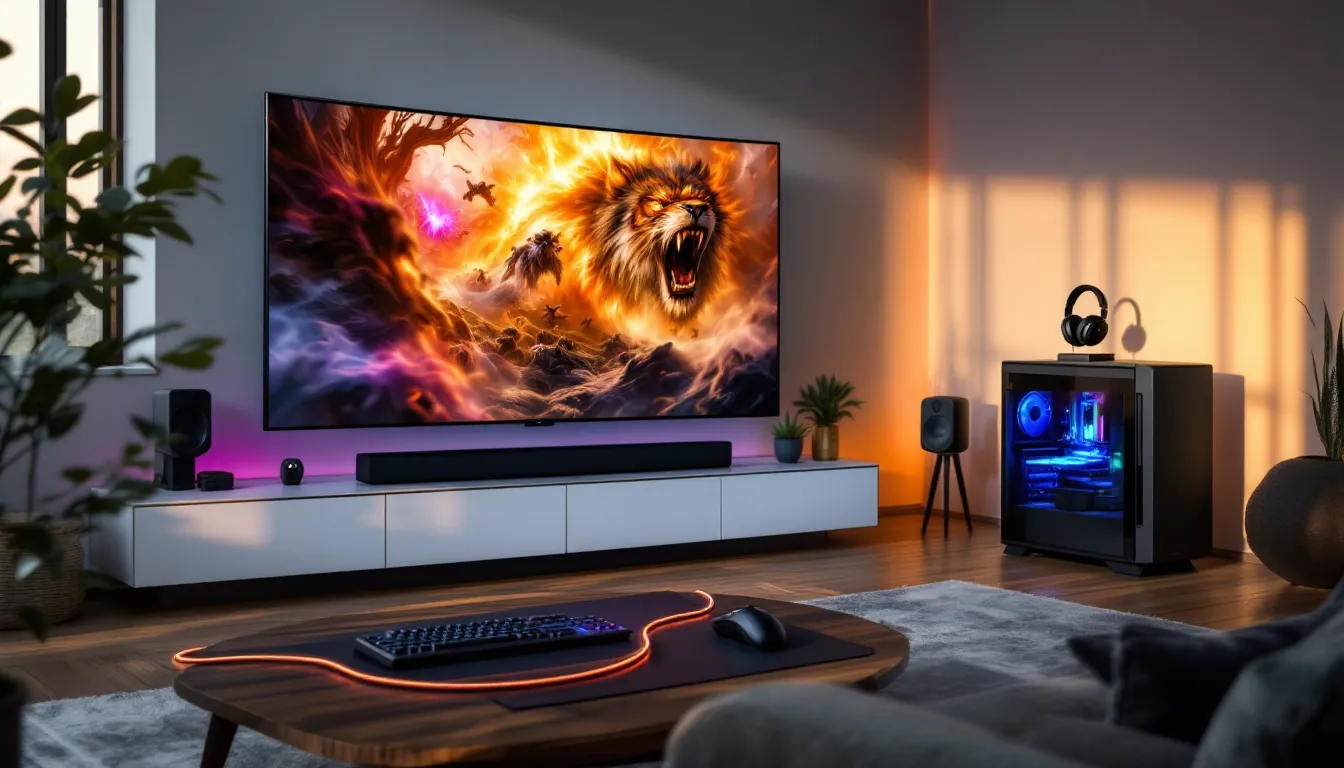

There’s something undeniably satisfying about kicking back on the couch with a controller in hand, eyes locked on a massive screen instead of hunched over a desk. PC gaming on TV has evolved from a janky, laggy afterthought into a legitimate setup that rivals traditional console gaming, sometimes even surpassing it. With the right hardware and settings, gamers can squeeze every bit of performance from their rig while enjoying the comfort and scale of a living room setup.
But making the jump isn’t always plug-and-play. Input lag can ruin a competitive session, resolution mismatches can blur UI elements into unreadable messes, and wireless streaming can introduce stutters at the worst possible moments. This guide cuts through the noise and lays out exactly what’s needed to transform a TV into a proper gaming display, no compromises, no guesswork.
Key Takeaways
- PC gaming on TV has evolved into a legitimate setup that rivals traditional gaming when configured with the right hardware, eliminating input lag and performance compromises that once plagued the experience.
- Critical TV specs for gaming include input lag under 20ms, 120Hz refresh rate, HDMI 2.1 support, and VRR technology—Game Mode is essential to reduce lag from 80-100ms to just 10-20ms.
- A capable graphics card (RTX 4070 Ti Super or RX 7900 XT for 4K120), certified Ultra High Speed HDMI cables, and native resolution settings (3840×2160) are mandatory for optimal 4K performance.
- Couch gaming comfort combined with wireless controllers, Steam Input support, and flexible display setup allows PC gamers to enjoy immersive big-screen experiences without sacrificing responsiveness or posture.
- Story-driven RPGs, couch co-op titles, and action games benefit most from TV gaming, while competitive shooters require sub-15ms input lag and 120Hz refresh rates to match monitor-based performance.
- Disable all post-processing features like motion smoothing and dynamic contrast to minimize latency, enable HDR in Windows settings, and match color space to RGB Full (0-255) across GPU and TV for best picture quality.
Why Play PC Games on Your TV?
The Immersive Big-Screen Experience
Screen size matters more than most people admit. A 27-inch monitor might be perfect for competitive shooters where every millisecond counts, but it can’t replicate the sheer presence of a 65-inch OLED displaying Cyberpunk 2077 or Elden Ring in 4K HDR. Environmental storytelling hits differently when the world fills peripheral vision instead of sitting in a narrow field of view.
TV gaming also shines in multiplayer scenarios. Split-screen co-op, rare as it’s become, actually works on a large display. Racing games benefit from wider FOV settings without distortion, and strategy titles become more readable when UI elements aren’t crammed into 24 inches.
Couch Gaming Comfort and Flexibility
Desk gaming has its place, but hour-long sessions can turn into posture nightmares. A couch setup offers flexibility: lean back during cutscenes, sit forward for intense moments, or sprawl out during a chill farming sim session. The living room becomes a gaming space without sacrificing its primary function.
Wireless controllers remove cable clutter, and modern Steam Input support means nearly every PC game can be played without touching a mouse. For those who’ve built a powerful rig but don’t want to be chained to a desk chair, the TV becomes a second monitor with a completely different vibe, one that’s more social, more relaxed, and frankly more fun for certain genres.
Essential Hardware for PC Gaming on TV
Choosing the Right TV for PC Gaming
Not all TVs handle gaming equally. The three critical specs are input lag, refresh rate, and VRR (Variable Refresh Rate) support. Input lag under 20ms is the baseline for responsive gameplay, anything higher introduces noticeable delay between button presses and on-screen action. Most modern TVs from LG, Samsung, and Sony include a dedicated Game Mode that disables post-processing to cut lag.
Refresh rate determines smoothness. A 120Hz panel paired with a capable GPU unlocks buttery-smooth gameplay in supported titles. Look for TVs with HDMI 2.1 ports, which support 4K at 120Hz. OLED panels offer perfect blacks and near-instant pixel response times, while high-end LCD models with FALD (Full Array Local Dimming) provide better peak brightness for HDR content.
VRR tech, whether NVIDIA G-SYNC, AMD FreeSync, or generic HDMI VRR, eliminates screen tearing without the performance hit of traditional V-Sync. Many RTINGS reviews break down input lag and VRR compatibility by model, making it easier to identify which panels actually deliver on their gaming promises.
Graphics Cards and HDMI Requirements
The GPU needs to push pixels to match the TV’s capabilities. For 4K60, an NVIDIA RTX 4060 Ti or AMD RX 7700 XT handles most titles at high settings. For 4K120, step up to an RTX 4070 Ti Super or RX 7900 XT, anything less will struggle in demanding AAA games.
HDMI 2.1 on the GPU is mandatory for 4K120 and VRR. Older cards with HDMI 2.0 cap out at 4K60. Check the spec sheet before assuming a high-end card from 2020 will support the latest TV features. DisplayPort-to-HDMI adapters exist, but many don’t support the full HDMI 2.1 bandwidth, creating a bottleneck.
Cables and Adapters You’ll Need
A certified Ultra High Speed HDMI cable (48Gbps) is non-negotiable for 4K120 or HDR10. Cheap cables from random Amazon sellers often fail to hit full bandwidth, causing dropouts or forcing the TV to downgrade to 4K60. Stick with certified options from Cable Matters, Zeskit, or Belkin.
Cable length matters. Runs over 15 feet need active or fiber-optic cables to maintain signal integrity. For PCs more than a room away from the TV, consider a long-run solution or switch to wireless streaming instead of fighting with 30-foot HDMI nightmares.
If the GPU only has DisplayPort and no HDMI 2.1, a Club3D CAC-1085 adapter converts DP 1.4 to HDMI 2.1 with full 4K120 support. It’s one of the few adapters that actually works without compromise.
How to Connect Your PC to Your TV
Wired HDMI Connection Setup
Plug the HDMI cable into the GPU’s HDMI 2.1 port (usually labeled) and the TV’s HDMI 2.1 input (often HDMI 3 or 4, check the manual). Windows should auto-detect the display. If the TV doesn’t appear, press Win + P and select “Extend” or “Duplicate.”
In NVIDIA Control Panel or AMD Adrenalin, set the resolution to match the TV’s native res (usually 3840×2160) and refresh rate to 120Hz if supported. Enable VRR under the G-SYNC or FreeSync menu. In Windows display settings, set scaling to 100% to avoid blurry text, then adjust per-game UI scaling if elements are too small.
Enable Game Mode on the TV (usually under Picture settings). This disables motion smoothing, noise reduction, and other post-processing that adds input lag. Some TVs hide additional settings behind an “HDMI Ultra HD Deep Color” or “Enhanced Format” toggle, turn that on for full 4K120 and HDR support.
Wireless Streaming Solutions
Wired is always better for latency, but wireless works for non-competitive gaming. Steam Link (via the Steam app on smart TVs or a standalone device) streams games over local network with minimal lag on a strong 5GHz or Wi-Fi 6 connection. Expect 10-20ms additional latency compared to wired, fine for RPGs or strategy games, rough for twitchy shooters.
NVIDIA GameStream (deprecated but still functional on older setups) or the newer Moonlight open-source client offers similar performance. AMD users can try AMD Link, though it’s less polished. For the best wireless experience, use a Wi-Fi 6E router with the PC on ethernet and the streaming device on 5GHz or 6GHz wireless.
Avoid relying on wireless for competitive play. Even with perfect conditions, streaming adds latency that can’t be fully eliminated. It’s a convenience trade-off, not a replacement for a direct connection.
Optimizing Display Settings for Gaming
Resolution and Refresh Rate Configuration
Set the desktop resolution to the TV’s native panel resolution. For most modern TVs, that’s 3840×2160 (4K). Running at 1080p on a 4K TV introduces scaling blur, native resolution always looks sharper. If performance is a concern, use in-game resolution scaling or DLSS/FSR instead of lowering desktop res.
Refresh rate should match the TV’s capability. If the panel supports 120Hz and the GPU can drive it, enable it system-wide. Some games lock to 60fps by default even on high-refresh displays, check in-game settings and disable frame caps.
For competitive titles, dropping to 1440p120 or 1080p120 can boost framerates without sacrificing smoothness. Many PC gaming enthusiasts prioritize refresh rate over resolution for fast-paced shooters, and the performance gains on a TV setup are identical to monitor setups.
Input Lag and Game Mode Settings
Game Mode is the single most important setting. It disables all post-processing, cutting input lag from 80-100ms down to 10-20ms on most modern TVs. The picture might look slightly less vibrant, but the responsiveness is worth it.
Some TVs offer additional “PC Mode” or “Graphics Mode” presets that optimize for monitor-like behavior. These often disable overscan and sharpening filters, providing a cleaner image. Test both Game Mode and PC Mode to see which feels better.
If input lag still feels off, check for hidden settings. Motion smoothing, dynamic contrast, and noise reduction can re-introduce lag even with Game Mode enabled. When in doubt, disable every picture enhancement and re-enable only what’s needed.
HDR and Color Calibration
HDR10 support is standard on most 4K TVs, but implementation quality varies. Enable HDR in Windows display settings (toggle “Use HDR” under Display > HDR). In-game HDR calibration menus are critical, follow the sliders for black level, peak brightness, and paper white to dial in proper contrast.
OLED TVs handle HDR with perfect blacks and high peak brightness in small highlights. LCD TVs need strong local dimming zones to avoid washed-out blacks or blooming around bright objects. Test HDR with a title like Horizon Forbidden West or Cyberpunk 2077 that has robust calibration tools.
Color space should be set to RGB Full (0-255) on the GPU and TV. Some TVs default to Limited RGB, which crushes shadow detail. Check both the GPU control panel and the TV’s HDMI input settings to ensure they match.
Best Control Options for TV Gaming
Wireless Controllers and Compatibility
Xbox Wireless Controllers are the gold standard for PC compatibility. Native Windows support means zero setup, just pair via Bluetooth or the Xbox Wireless Adapter and start playing. The Elite Series 2 adds customizable paddles and trigger stops for competitive advantage, though the $180 price tag stings.
PlayStation DualSense controllers work flawlessly over Bluetooth or USB, with full haptic feedback and adaptive trigger support in titles like Spider-Man Remastered and Returnal. Steam Input handles button mapping automatically, though some launchers (looking at you, EA App) require third-party tools like DS4Windows.
For fighting games and 2D platformers, an arcade stick or 8BitDo controller offers better D-pad precision. Budget option? The Xbox Series S controller at $60 delivers the same core experience as the pricier Elite without the extras.
Keyboard and Mouse Solutions for the Couch
Couch KB+M setups sound awkward but work surprisingly well. A Corsair K63 Wireless with the lapboard attachment or a Logitech K830 (compact with integrated trackpad) turns a coffee table into a functional desk replacement. Pair with a wireless mouse on a hard mousepad for FPS gaming that doesn’t sacrifice precision.
For hybrid setups, keep a controller for third-person games and a wireless KB+M combo nearby for shooters or strategy titles. Steam Input supports seamless switching between input types, and games like Halo Infinite and Apex Legends auto-detect input changes without requiring restarts.
Mousepad placement matters. A rigid lapboard works better than trying to balance a cloth pad on couch cushions. Some gamers swear by a side table positioned at elbow height for the mouse, leaving the keyboard on the lap, experiment to find what feels natural.
Audio Setup for PC Gaming on TV
Surround Sound and Soundbar Options
TV speakers are rarely good enough for competitive gaming. A proper 5.1 or 7.1 surround sound system provides directional audio cues that can mean the difference between hearing footsteps behind you or getting third-partied. Receivers from Denon, Yamaha, or Onkyo with HDMI 2.1 passthrough maintain 4K120 and VRR while decoding Dolby Atmos or DTS:X.
For simpler setups, a soundbar with a subwoofer like the Samsung HW-Q990C or Sonos Arc delivers spatial audio without running speaker cables. Many support HDMI eARC to pass lossless audio from the TV back to the soundbar. The bass impact in explosions and gunfire is night-and-day compared to tinny TV drivers.
Windows Sonic for Headphones and Dolby Atmos for Home Theater (requires a $15 app purchase) provide virtual surround through stereo speakers or soundbars. It’s not true surround, but it improves positional accuracy in supported games.
Wireless Gaming Headsets
Wireless headsets eliminate the cable tether that makes couch gaming annoying. The SteelSeries Arctis Nova Pro Wireless supports simultaneous Bluetooth and 2.4GHz wireless, letting gamers take Discord calls while in-game. Battery life hits 44 hours per charge with the hot-swappable dual-battery system.
Audeze Maxwell offers planar magnetic drivers for audiophile-grade sound, while the HyperX Cloud Alpha Wireless delivers 300-hour battery life, almost absurd longevity. For budget picks, the Logitech G535 at $130 balances decent sound, low latency, and comfortable earcups for long sessions.
Latency is the killer for wireless audio. Stick to 2.4GHz USB dongles over Bluetooth for gaming. Bluetooth introduces 100-200ms delay, making rhythm games unplayable and desync noticeable in cutscenes. Save Bluetooth for music and media.
Common Issues and Troubleshooting Tips
Fixing Display and Resolution Problems
Black bars or stretched images mean overscan is enabled. Jump into the TV’s picture settings and disable “Overscan,” “Screen Fit,” or “Just Scan” options. This forces the TV to display every pixel the GPU sends without cropping or scaling.
If the TV shows 4K60 max instead of 4K120, check three things: the HDMI cable is certified Ultra High Speed, the TV’s HDMI port supports 2.1 (often only specific ports do), and “Enhanced Format” or “HDMI Ultra HD” is enabled in the TV’s input settings. Also verify the GPU driver is current, older drivers sometimes cap refresh rates.
Blurry text at 4K usually means Windows scaling is set to 150% or 200%. Drop it to 100% in display settings. UI elements in games will shrink, but most modern titles include separate UI scaling sliders. For detailed setup tutorials, HowToGeek has step-by-step walkthroughs for specific TV models.
Reducing Input Lag and Latency
Game Mode should be the first fix. If lag persists, disable every post-processing option: motion smoothing, dynamic contrast, noise reduction, edge enhancement. These features add 20-50ms of lag each.
Check the GPU control panel for V-Sync settings. Traditional V-Sync adds a full frame of latency, use Fast Sync (NVIDIA) or Enhanced Sync (AMD) instead, or rely on VRR to handle tearing without the input lag penalty.
For wireless streaming setups, hardwire the PC to the router with ethernet, ensure the TV or streaming device is on 5GHz Wi-Fi (not 2.4GHz), and close background apps hogging bandwidth. Stream quality matters less than network stability, dropping bitrate from 50Mbps to 30Mbps often reduces stutters without visible quality loss.
Best Games to Play on Your TV
Some genres just hit different on a big screen. Story-driven single-player games like Baldur’s Gate 3, The Witcher 3, and Red Dead Redemption 2 benefit from the cinematic scale. Dialogue scenes, environmental details, and cutscenes feel more immersive when they’re not competing with browser tabs and Discord notifications.
Couch co-op titles shine on TVs. It Takes Two, Overcooked 2, A Way Out, and Divinity: Original Sin 2 turn the living room into a shared gaming space. Split-screen shooters like Halo: The Master Chief Collection and racing games like Forza Horizon 5 make use of the extra screen real estate without cramping visibility.
Action RPGs and open-world games like Elden Ring, Horizon Forbidden West, and Cyberpunk 2077 look stunning in 4K HDR. The color grading and lighting systems in these titles were designed with HDR in mind, and OLED displays reveal shadow details that get lost on standard monitors.
Competitive shooters can work on TVs if input lag is under 15ms and refresh rate is 120Hz. Call of Duty, Apex Legends, and Valorant are playable, but serious ranked grinders will still prefer a low-latency monitor. For casual play, the TV experience is perfectly fine.
Racing and flight sims like Microsoft Flight Simulator, Assetto Corsa Competizione, and Gran Turismo 7 (via streaming or console) benefit from wide FOV settings and HDR. The sense of speed and environmental depth on a large display elevates the immersion beyond what a monitor can deliver.
Conclusion
PC gaming on TV isn’t a compromise anymore, it’s a legitimate alternative that offers flexibility, immersion, and comfort without sacrificing performance. The hardware exists, the software support is solid, and the results speak for themselves when dialed in correctly. Whether it’s for sprawling RPGs, couch co-op sessions, or just a change of scenery from the desk, the living room setup has earned its place in the modern gaming ecosystem.
The key is treating the TV like a monitor with different strengths instead of forcing it to behave identically. Optimize settings, minimize input lag, and choose games that benefit from the big-screen treatment. Done right, it’s one of the most satisfying ways to experience PC gaming in 2026.